When you enable Hotspot, you are given options option to WiFi / Bluetooth OR USB
You may choose any of these three (See the Pic below)
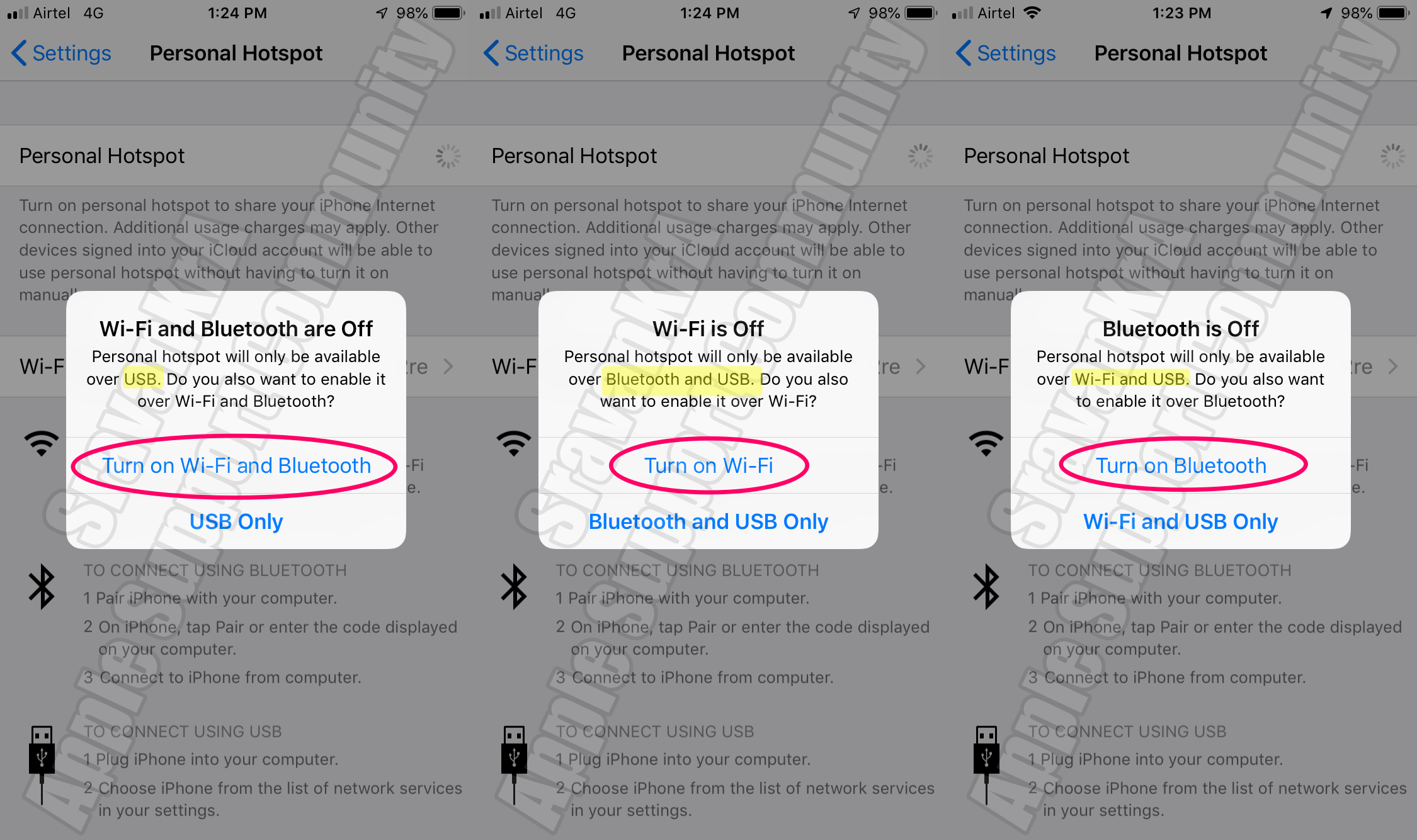
Following are the ways you can connect to a hotspot:
WiFi and Bluetooth Offer Wireless connections whereas USB is wired.
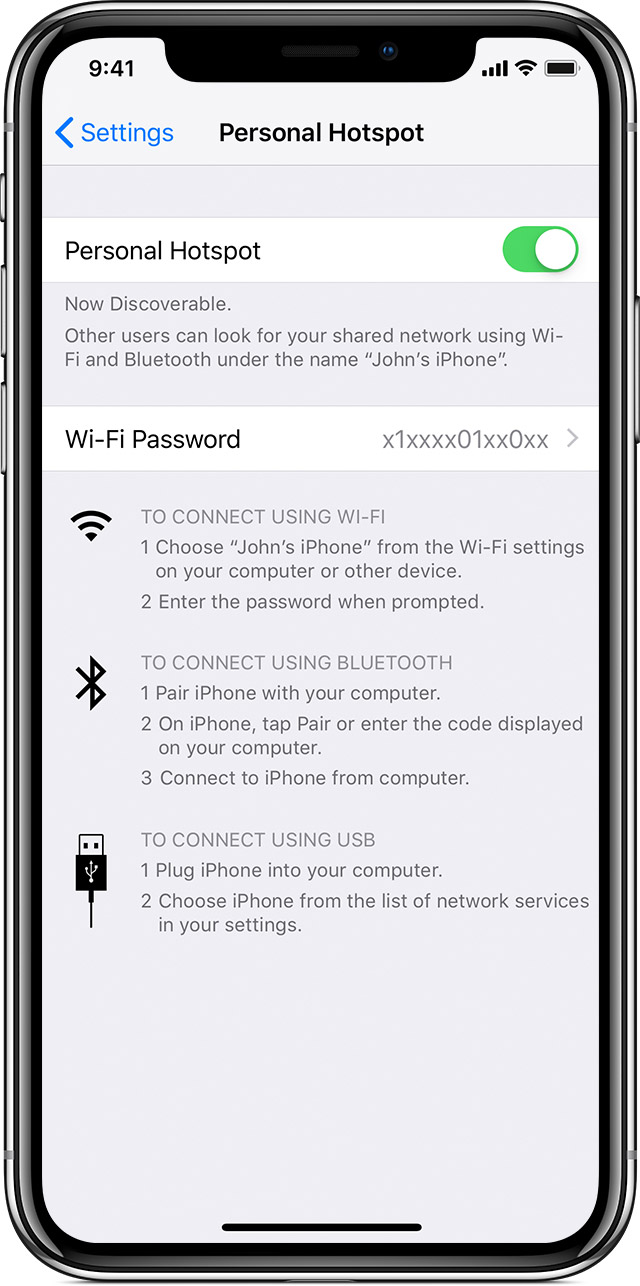
Wi-Fi
On the device that you want to connect to, go to Settings > Cellular > Personal Hotspot or Settings > Personal Hotspot and make sure that it's on. Then verify the Wi-Fi password and name of the phone. Stay on this screen until you’ve connected your other device to the Wi-Fi network.
On the device that you want to connect, go to Settings > Wi-Fi and look for your iPhone or iPad in the list. Then tap the Wi-Fi network to join. If asked, enter the password for your Personal Hotspot.
Bluetooth
To make sure that your iPhone or iPad is discoverable, go to Settings > Bluetooth and stay on that screen. Then on your Mac or PC, follow the manufacturer's directions to set up a Bluetooth network connection. Learn more about using Personal Hotspot with Bluetooth.
Personal Hotspot supports Bluetooth connections with Mac, PC, and other third-party devices. To connect to another iOS device, use Wi-Fi.
USB
Make sure that you have the latest version of iTunes on your Mac or PC. Then connect your iPhone or iPad to your computer with the USB cable that came with your device. If you see an alert that says tap "Trust This Computer?" tap Trust.
Learn more about connecting a device to your iPhone or iPad's Personal Hotspot.
 User level: Level 1 (4 points)