See the pic below, which is self-explanatory for turning off stolen device protection. Though the pic is for a Face ID device, Touch ID also follows the same sequence of operations.
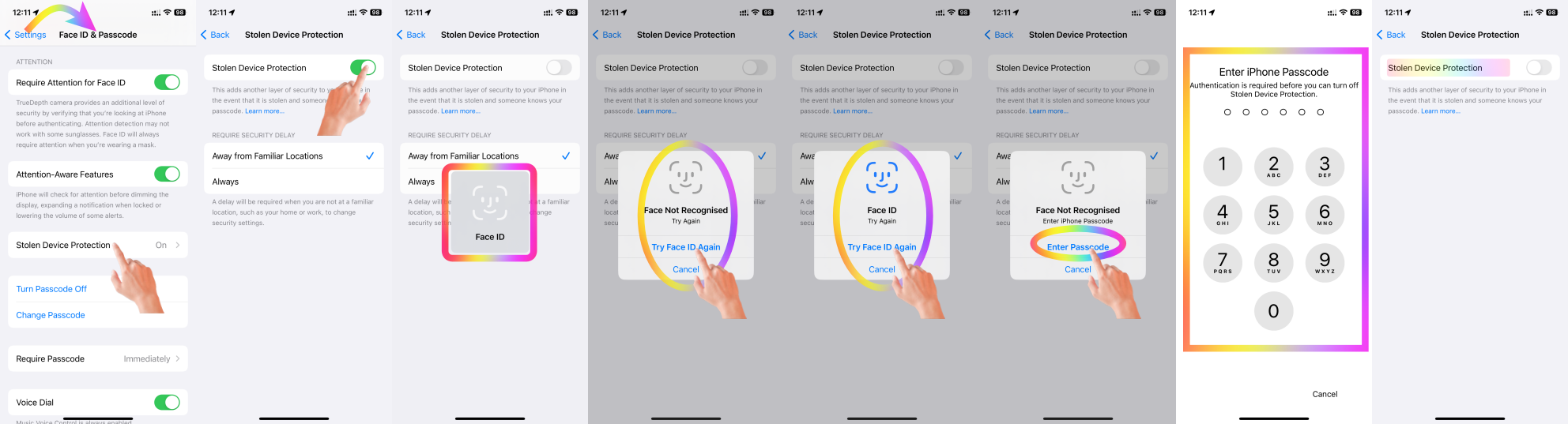
Probably you have "Always" Ticked in place of "Away from Familiar Location"
For enhanced security, there's a one-hour delay when changing your location settings from "Always" to "Away from Familiar Location." This applies even if you use Face ID for authentication.
A delay will be required when you are not at a familiar location, such as your home or work, to change security settings.
Know more --> About Stolen Device Protection for iPhone

Simply adding a location to your contact card (e.g., marking it as "Home") does not automatically make it a "Familiar Location" in the context of iPhone's location-based learning and features.
Why Adding "Home" to the Contact Card Isn't Enough:
- Trust and Validation: Adding an address to your contact card can be done manually or by anyone with access to your phone, but the iPhone uses activity-based learning to validate locations it deems "familiar."
- Behavior-Based Learning: iPhones utilize machine learning and location tracking (if enabled) to recognize patterns of frequent visits. It identifies "Familiar Locations" based on where the phone spends significant time during specific periods, like overnight stays or long durations.
What You Can Do:
- Spend Time at the Location: Use your iPhone at your new address consistently, especially during the hours you'd normally be home (e.g., evening and night). Over time, the iPhone will learn this as a familiar location.
- Enable Location Services:
- Go to Settings > Privacy & Security > Location Services and ensure it's turned on.
- Make sure "Significant Locations" (under System Services) is enabled. This helps the iPhone learn frequently visited locations.
- Ensure GPS Accuracy: Poor GPS accuracy can delay location recognition. Make sure your iPhone is connected to Wi-Fi, as this improves location precision indoors.
By doing this, the iPhone will naturally associate the address with your routines, and over time, it will classify it as a "Familiar Location."
- Is this your corporate iPhone? Then please get in touch with the system administrator of your corporate
- If it is your device, in that case, do you have any profile installed by your corporate/organization/enterprise/School Management?
- Erase the profile added by you If you have installed a profile on your own --> Install or remove configuration profiles on iPhone - Apple ...
- Please contact the system administrator of the organization who provided the profile to you
- If you want to turn on SSL trust for that certificate, go to Settings > General > About > Certificate Trust Settings. Under "Enable full trust for root certificates," turn on trust for the certificate. Apple recommends deploying certificates via Apple Configurator or Mobile Device Management (MDM). --> Trust manually installed certificate profiles in iOS and iPadOS ...
 User level: Level 1 (8 points)