Archive. This is an archive of the Apple Support Community. Discussions are being restored and soon you will be able to read and post here again.

Where did the Timer widget go in Control Center after iPadOS 27.0.1 update?

I just updated to the latest OS 27.0.1 on my iPad Air 11-inch (M2) and the Timer feature/widget has disappeared from my Control Center or does it’s icon just look different now? I did a search for it under Settings and it didn’t appear there either. I use that feature on a daily basis. Where might I find it now? Thanks!


[Re-Titled by Moderator]

Original Title: Missing Timer

8 replies

Mine disappeared after the update, too. I got it back this way:

  • Swipe across from the top, right corner to bring up the Control Center
  • Tap the + at the top
  • Add the Timer icon


That should do it for you!


Use and customize Control Center on iPad - Apple Support


You can easily add/remove or modify both the controls that appear within the Control Centre - and arrange the layout.


Expose the Control Centre with a downward swipe from the top-right corner of the screen. Touch-and-hold below the visible controls to trigger the Control Centre editing mode; now tap the Add a Control button.


You can now select additional controls from those available, including the Timer from the Clock controls:


More information about configuring the Control Centre can be found within the frequently overlooked iPad User Guide. Here is a direct link the the relevant section of the Guide:

Use and customize Control Center on iPad - Apple Support


Branta_uk wrote:
But iPadOS 27 does support the Clock widget, and the Timer function is included in it along with alarms and stopwatch.


You are of course quite correct in that the Clock Widget - which is available - does provide access to the World Clock, Alarms, Stopwatch and Timer functions. The Clock Widget is essentially a direct clone of the native Clock App.


For the benefit of clarity, there isn't a dedicated Timer Widget - where there is a dedicated Control Centre Timer.

Ensure that you have updated your iPad to the most recent version of iPadOS. At the time of writing, iPadOS 26.7.1 and 27.0.1 are current.


If your iPad is not operating as expected, try a forced-restart - as this will often clear an isolated or post-update software issue:


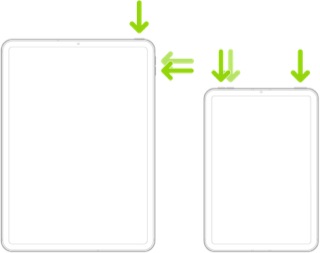
Force restart iPad (models with Face ID or with Touch ID in the top button)

If your iPad doesn’t have the Home button, do the following:

  1. Press and quickly release the volume button nearest to the top button.
  2. Press and quickly release the volume button farthest from the top button.
  3. Press and hold the top button.
  4. When the Apple logo appears, release the top button.


If the problem persists after performing the restart, it may be necessary to reset your iPad settings. While this reset will not cause any loss of data, as a precaution, it is always wise to ensure that you have a current iCloud or iTunes backup before performing the reset:

How to back up your iPhone, iPad, and iPod touch - Apple Support


When you are happy to proceed, you can perform the reset from iPad settings:

Settings > General > Transfer or Reset iPad > Reset > Reset All Settings


If the problem still doesn’t clear, the next step is to reset the iPad to factory settings:

Restore your iPhone, iPad, or iPod to factory settings - Apple Support


Otherwise, you would be best advised to seek assistance directly from Apple Support. You can contact the Support Team using the Support link at top-right or bottom-left of this page. Alternatively you can initiate and manage your support cases from Apple devices using the excellent Apple Support App. If not already installed the App can be downloaded from the App Store:

https://apps.apple.com/app/apple-support/id1130498044


You might also visit the Genius Bar at your local Apple Store or Apple Authorised Service Provider (AASP) - where the technicians will be able to provide hands-on assistance with troubleshooting:

Genius Bar Reservation and Apple Support Options - Apple

LotusPilot wrote:
If you're aware of the Control Centre Timer control - and can successfully use this - but are instead actually looking for a Home Screen (or Today View) Timer Widget - then you're out of luck. For iPadOS 27, there isn't a Timer Widget.

But iPadOS 27 does support the Clock widget, and the Timer function is included in it along with alarms and stopwatch.

Yes, I know how to add items to my Control Center. That’s not the issue. The Timer isn’t showing up as an option anymore. I don’t see the icon anywhere and the Timer isn’t showing up when I do a search.

hstupno wrote:
Yes, I know how to add items to my Control Center. That’s not the issue. The Timer isn’t showing up as an option anymore. I don’t see the icon anywhere and the Timer isn’t showing up when I do a search.


Perhaps we're on the wrong track here altogether...


If you're aware of the Control Centre Timer control - and can successfully use this - but are instead actually looking for a Home Screen (or Today View) Timer Widget - then you're out of luck. For iPadOS 27, there isn't a Timer Widget.

Yeah, I know how to add items to the Control Center, but it’s not even an option there. Doesn’t even show up as an option anymore. The Time icon isn’t in the options to be added.