Ensure that you have updated your iPad to the most recent version of iPadOS - at the time of writing, for your iPad8, this being iPadOS 26.7.1.
If your iPad as not performing as expected, try a forced-restart - as this will often clear an isolated or post-update software issue:
Force restart iPad (models with Face ID or with Touch ID in the top button)
If your iPad doesn’t have the Home button, do the following:
- Press and quickly release the volume button nearest to the top button.
- Press and quickly release the volume button farthest from the top button.
- Press and hold the top button.
- When the Apple logo appears, release the top button.
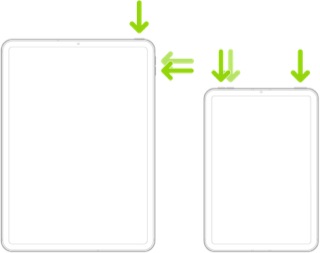
Force restart iPad (models with the Home button)
Press and hold the top button and the Home button at the same time. When the Apple logo appears, release both buttons.

If the problem persists after performing the restart, it may be necessary to reset your iPad settings. While this reset will not cause any loss of data, as a precaution, it is always wise to ensure that you have a current iCloud or iTunes backup before performing the reset:
How to back up your iPhone, iPad, and iPod touch - Apple Support
When you are happy to proceed, you can perform the reset from iPad settings:
Settings > General > Transfer or Reset iPad > Reset > Reset All Settings
If the problem still doesn’t clear, the next step is to reset the iPad to factory settings:
Restore your iPhone, iPad, or iPod to factory settings - Apple Support
Otherwise, you would be best advised to seek assistance directly from Apple Support. You can contact the Support Team using the Support link at top-right or bottom-left of this page. Alternatively and perhaps easier, you can initiate and manage your support cases using the excellent Apple Support App. If not already installed on your iPad, the App can be downloaded from the App Store:
https://apps.apple.com/app/apple-support/id1130498044