Unofficial archive. This is a read-only, community-run archive of the Apple Support Community. It is not affiliated with or endorsed by Apple Inc.

Unknown Error (-50) when syncing iPhone 16 Pro with MacBook Pro

I am getting a recurring "Unknown Error (-50)" when trying to synch my iPhone 16 Pro with my MacBook Pro...both have been upgraded with the latest OS: iOS 27.0.1 and Golden Gate 27.0.1 respectively.

How do I fix this?

Thank you in advance for al the help.

2 replies

If you're experiencing difficulty connecting your iPhone to your Mac, there are a few steps you can take to troubleshoot the issue:


  1. Check the USB cable and ports: Ensure that you're using a certified Lightning to USB cable and try connecting it to different USB ports on your Mac. Also, check for any physical damage or debris in the ports that may be preventing a proper connection. Use genuine cable --> Identify counterfeit or uncertified Lightning connector accessories ...
  2. Disconnect all other USB devices from your computer, except for your keyboard and mouse. --> Resolve USB-related alerts in iTunes/Finder - Apple Support
  3. Search for accessories that have completed MFi certification. Once an accessory has completed MFi certification requirements and is reported to Apple as sold/distributed, it will be searchable in our public database of authorized Lightning, headset, charging, iAP-enabled, and Find My network-enabled accessories.
  4. Learn how to identify counterfeit or uncertified Lightning-based accessories.
  5. Restart your iPhone and Mac: Sometimes, restarting your devices can resolve temporary connection issues. Restart both your iPhone and your Mac, and then try connecting them again.
    1. Restart the device. That's it.
    2. Still not solved --> Force restart iPhone - Apple Support
  6. Search for accessories that have completed MFi certification. Once an accessory has completed MFi certification requirements and is reported to Apple as sold/distributed, it will be searchable in our public database of authorized Lightning, headset, charging, iAP-enabled, and Find My network-enabled accessories.
    1. Learn how to identify counterfeit or uncertified Lightning-based accessories.
  7. Update your software: Make sure that both your iPhone and Mac are running the latest software versions. On your iPhone, go to Settings > General > Software Update, and on your Mac, go to the Apple menu > System Preferences > Software Update.
    1. Update Over-the-Air (OTA) —> Update your iPhone or iPad - Apple Support (IN)
    2. Update using iTunes/Finder —> Update your iPhone, iPad, or iPod touch - Apple Support (IN)
  8. Trust the computer: When connecting your iPhone to your Mac for the first time, you may need to trust the computer on your iPhone. Unlock your iPhone and check for any prompts asking you to trust the connected computer. Confirm the trust request on your iPhone. About the “Trust This Computer” alert message on your ...
  9. Try a different port, cable, or computer. The issue could be related to your computer, its USB port, or the USB cable connecting it to your device. If possible, try a different computer, USB port, or USB cable. Also, check for any debris in the charging port on the bottom of your iPhone or iPad. --> If your computer doesn't recognize your iPhone, iPad, or iPod ...
  10. Reset your iPhone's settings: If the issue persists, you can try resetting your iPhone's settings. Go to Settings > General > Transfer & Reset > Reset > Reset All Settings. This will not erase your data but will reset your settings to their default values. After the reset, attempt to connect your iPhone to your Mac again. Return iPhone settings to their defaults - Apple Support (IN)
  11. Update iTunes or Finder (macOS Catalina or later): If you're using a Mac running macOS Mojave or earlier, make sure you have the latest version of iTunes installed. If you're using macOS Catalina or later, iTunes has been replaced with Finder for device management. Ensure that you have the latest macOS updates installed, which should include the latest version of Finder. Update macOS on Mac
  12. Check for conflicting software: Sometimes, third-party security software or firewalls can interfere with the connection between your iPhone and Mac. Temporarily disable any security software or firewalls and see if that resolves the issue.


If you are experiencing an issue not listed here, contact support as they can provide specific troubleshooting steps based on your situation.

An iPhone and a MacBook do not normally sync directly with each other for iCloud-based data. The iPhone first synchronizes its supported data with iCloud, and the MacBook then synchronizes with that same iCloud account.


In simple terms, iCloud acts as the central synchronization hub:


iPhone ↔ iCloud ↔ MacBook



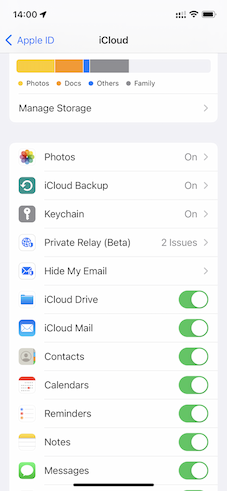
These do not sync between devices. Photos, Notes, Reminders, Messages, etc.


Enabling iCloud for various functionalities such as Photos, Notes, Reminders, Messages, and more, as illustrated in the accompanying image, facilitates the seamless synchronization of each of these elements with iCloud through the internet.


If one of the devices is not connected to the internet then it may seem to you that they are not syncing. This link could assist you in pinpointing internet issues, a crucial step for synchronization. Internet not available WiFi and Cellular … - Apple Community


Note: If you delete any or all data from one device, it will also be removed from iCloud and all other devices linked to the same Apple ID. Likewise, the reverse is true as well.


Similarly...


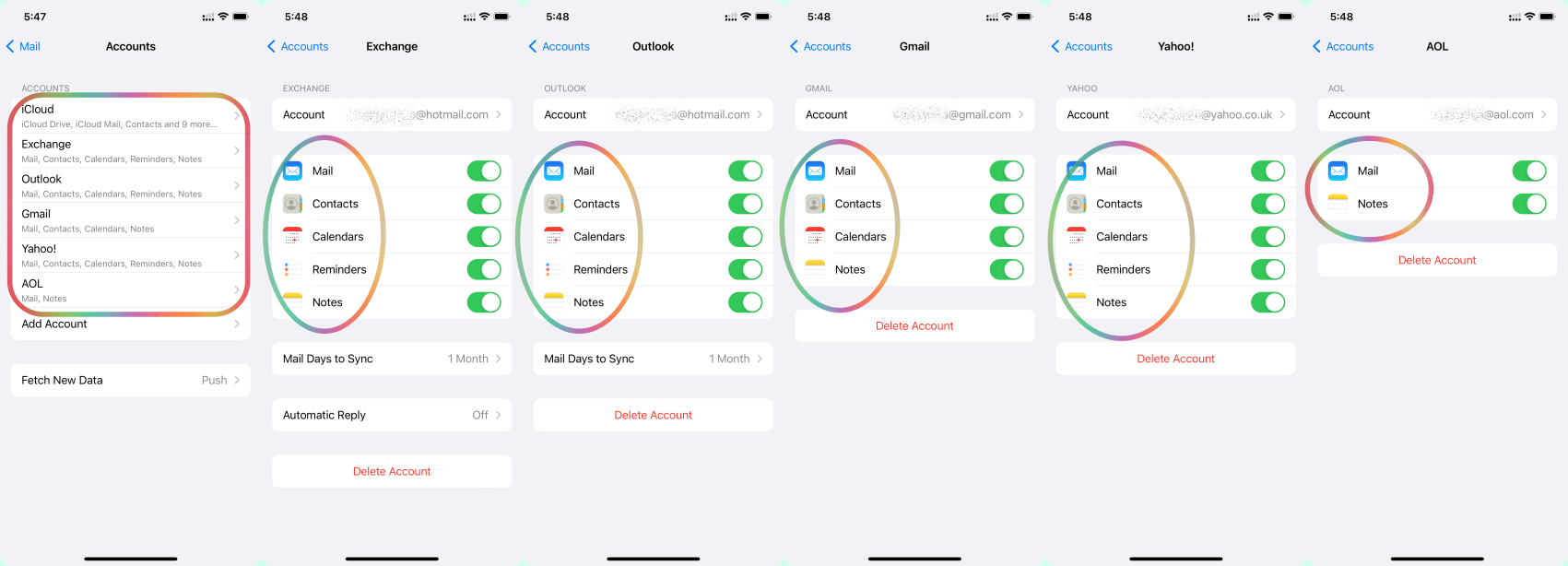
These don't sync between devices Contacts, Calendars, Bookmarks, Notes, Voice Memos, shared photos, iCloud Photos, and emails. Each device syncs to the email account server which may be Google, iCloud, AOL, Exchange, Outlook, Yahoo, or any Other. Please see the pic below.


For Audiobooks, iMovie Project, and Apple Podcast log in with the same Apple ID as used in your Mac


If one of the devices is not connected to the internet then it may seem to you that they are not syncing. This link could assist you in pinpointing internet issues, a crucial step for synchronization. Internet not available WiFi and Cellular … - Apple Community