Probably you have turned on Night Shift
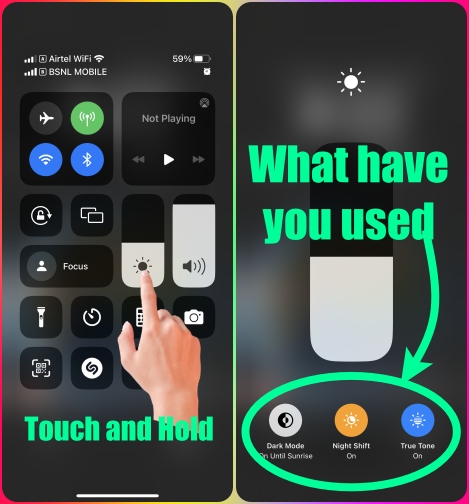
- Open Control Center. Firmly press the Brightness control icon, then tap to turn Night Shift on or off.
- Go to Settings > Display & Brightness > Night Shift. 2 On the same screen, you can schedule a time for Night Shift to turn on automatically and adjust color temperature.


There are a few reasons why your iPhone screen might dim when you play videos. Here are some of the most common causes:
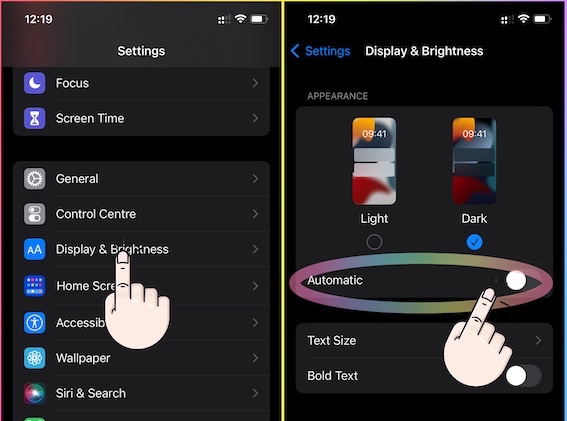
- Auto-brightness: This is a feature that automatically adjusts your screen brightness based on the ambient light levels. If you're watching a video in a dark room, your screen might dim to save power. You can disable auto-brightness in your iPhone's settings.
- Probably you have turned on Auto Brightness
- Open Control Center. Firmly press the Brightness control icon, then tap to turn Night Shift on or off.
- Go to Settings > Display & Brightness > Night Shift. 2 On the same screen, you can schedule a time for Night Shift to turn on automatically and adjust the color temperature.
- True Tone: This is another feature that can cause your screen to dim. True Tone automatically adjusts the color and intensity of your screen to match the ambient light levels. This can make your screen appear dimmer when you're watching a video in a dark room. You can disable True Tone in your iPhone's settings.
- Night Shift: This is a feature that automatically adjusts the color temperature of your screen to a warmer setting at night. This can make your screen appear dimmer, especially if you're watching a video in a dark room. You can disable Night Shift in your iPhone's settings.
- Low Power Mode: This is a feature that can cause your screen to dim to conserve battery life. If your iPhone is in Low Power Mode, it might lower the brightness of your screen. You can disable Low Power Mode in your iPhone's settings.
Please see the pic below and check the status of your settings on your device.
If you have set a schedule for Night Shift on your iPhone, but the toggle is turning on outside of the scheduled hours without your input, then you may try any of these:
- Go to Settings > General > Date & Time > Turn On Set Automatically. If you can't change the time or time zone on your Apple device
- Where is the color temperature set on the same screen where you have scheduled the Night Shift? Keep it at the center. See the pic below

- Turn off Night Shift by toggling it off and then wait for a few seconds. Afterward, toggle it back on. This action can help reset any temporary glitches in the system and reestablish the correct behavior.
- Restart the device. That's it.

- Still not solved --> Force restart iPhone - Apple Support

Resolving iPhone Display Issues: A Step-by-Step Guide
- Document Everything: Meticulously record all interactions with Apple Support, service providers, and the retailer. Include dates, times, names, and summaries.
- Visual Evidence: Capture high-quality photos and videos of the display issue from multiple angles, under various settings (Night Shift, True Tone).
- Formal Complaint: Submit written complaints to both the retailer and Apple Support, detailing the issue, support history, and desired resolution (e.g., replacement).
- Dispute Service Reports: If service reports deny the issue, formally dispute them with evidence and request reevaluation.
- Escalate Support: Contact higher-level Apple Support representatives or supervisors.
- Explore Consumer Protection: Contact local consumer protection agencies for assistance and dispute mediation.
- Consider Alternative Service Centers: Evaluate potential alternatives (with insurance implications).
- Visit an Apple Store Abroad: Explore this option as a last resort, understanding the potential costs and inconveniences.
- Leverage Public Platforms: Share your experience on social media and relevant forums to raise awareness.
- Seek Legal Counsel: If necessary, consult with a legal professional to understand your consumer rights and available legal remedies.
 User level: Level 1 (4 points)