Do not use a VPN
Ensure the VPN is fully turned off, regardless of whether you are connected. At times deleting the VPN profile may be necessary.

Disable VPN
VPN or proxy connections might prevent your device from contacting the update servers.
Contact the VPN Service provider and disable it for the time being. In some cases, if the VPN server or network is configured to block certain domains or IP addresses, it might inadvertently block Apple's update servers. This could prevent your device from connecting to Apple's servers to download the update. Make sure that the VPN settings do not block Apple-related services.
Check internet connectivity.
Your device is probably not connected to the internet. There are a few steps you can take to verify the connectivity of your device.
You may test the internet connectivity in two ways...
- Firstly, you can open a web browser on your device. When you open a web browser, the initial page that loads is typically based on your browsing history or cookies. To further confirm the connection, you can tap on any link on that website. If the link opens and displays the corresponding content, it confirms that your device is indeed connected to the internet. See the pic below

- Another method to check internet connectivity is by opening a specific application that requires an internet connection. WhatsApp is an example of such an application. When you launch WhatsApp, it immediately attempts to establish a connection with its servers to synchronize your chats and display any new messages. If you can see your chat conversations and receive real-time updates, it indicates that your device is connected to the internet. See the pic below
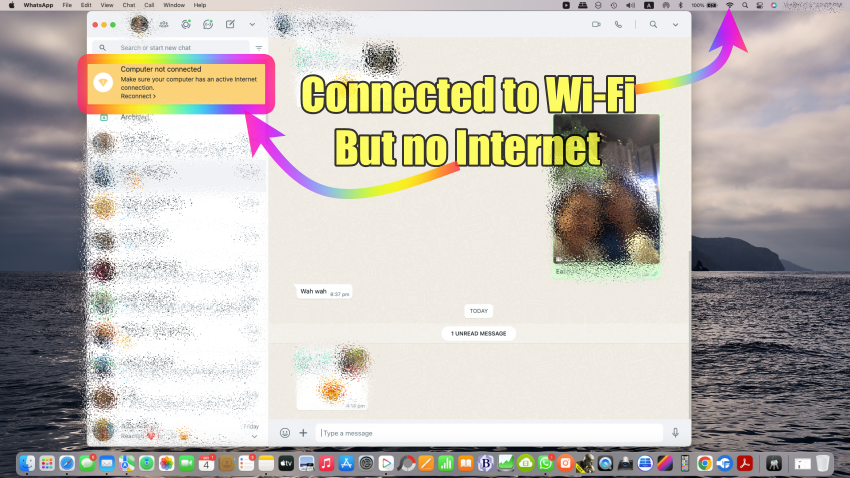
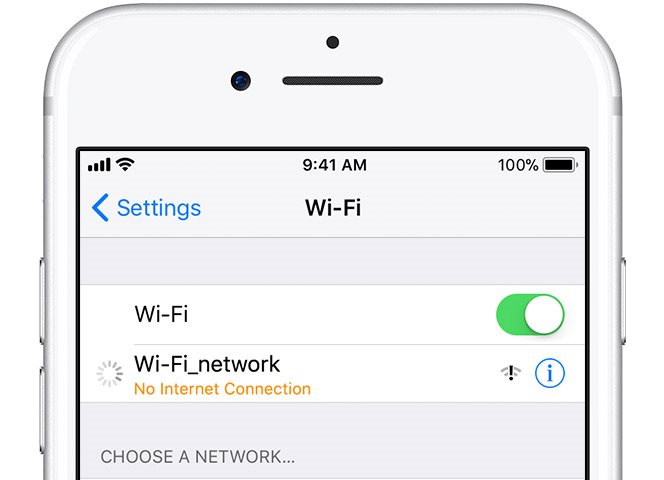
Connecting to Wi-Fi is the initial step, followed by establishing an internet connection.
However, it's important to note that connecting to Wi-Fi does not automatically guarantee an internet connection. If you are unable to connect to Wi-Fi, the issue may stem from settings on your iPhone or the router/modem.

On the other hand, if you are unable to establish an internet connection despite being connected to Wi-Fi, the problem is likely related to the settings on your router/modem. In such cases, it is advisable to promptly contact your Internet Service Provider (ISP) for assistance.
Check Router Settings
Check your WiFi Router / Modem for --> Recommended settings for Wi-Fi routers and access points ...
Connecting to Wifi is the first part and then getting connected to the Internet is the second
- If you connect to Wifi, doesn't necessarily mean you are connected to the internet. If you are not connected to wifi could be a problem with iPhone settings or Router/Modem Settings
- If you are not connected to the internet is the sole issue of Router / Modem Settings. Contact your ISP immediately
Contact ISP or Carrier
For your Internet connection.
- Over Cellular: contact your Carrier (Cellular Service Provider). The agency that issued the SIM to you
- Over WiFI: Contact your ISP (Internet Service Provider), the agency that provided the Internet Service on your Modem/Router to you
However --> Connect iPhone to the Internet - Apple Support
Update options:
There are only 2 ways to update an iOS/iPadOS. Know how to...