Unofficial archive. This is a read-only, community-run archive of the Apple Support Community. It is not affiliated with or endorsed by Apple Inc.

How to resolve photo editing problems on iPhone XS?

An action-icon bar and resultant big colour palette always sits obstructing on top of the photos I want to edit. So editing cannot be done properly and fully.

This started from iOS 17 and now I have iOS 18.6. iPhone XS.

Please help.

Here is the screenshot of it:-


[Edited by Moderator]

Original Title: Troubling extra icon bar and color palette on top of the photos in editing in phone, iOS 17 onwards, iphone XS. Please Help.

8 replies

This seems to be in Markup Mode, is that right? What happens when you hit cancel?


To edit, you tap the edit icon


Then the Markup button shows up at the top of the screen.


Markup mode lets you draw circles and stuff, and you can write text. If you don't want to do that, then be careful to avoid that button.


Does this work for you?


Oh,

now I see… when I click “Cancel”, the box goes away. I did not get your meaning at first.

Thank you Richard. Oh! I never could think thag the word “Cancel” could mean this… only the box getting removed (because the obvious meaning of Cancel is: cancelling everything— all acts and return to original image. Normal logic/intelligence).

How is anyone supposed to know the tricks-methods? Also: what you showed is against common sense and intuition, whiles Apple claims intuitivity and common-sensitivity in methods of use in its products. There is no documentation by Apple, of these things. Is there?

Thank you.


Now, how to delete my first reply to you? Is there any way for it?

i would not have written the previous so long answer, if I had first tried out what you said:—“What happens when you hit cancel?”.


I tried it now and lo! I see my problem solved (or so it seems!).👌😁

Try

Contact Apple Support - Apple Support

You usually start out with a live chat, and if it gets complicated you talk to a person. My experience has been that they are nice and helpful.

No, Mr. Taylor…

The problem is:

1) Of course, I have tto first click the “Edit” button/icon.

In this, when I use pencils and brushes, the round colour icon in the bottom right works for those tools But…

2) when I want to add Text or Shapes on the image, I have to first click the Mark up button/icon..yes.. as you said.. for which I have to click the “+” sign/icon on the bottom-right off the iPhone screen.

Then: Inside that;- when I click Shapes or Text option, it appears, but along with another icon bar (as shown in screenshot below).

And also, the main colour icon (second in the bottom right of screen) stops working. And so then, I have to use the new popped up icon bar…and icons in it to chose and give colour to the Text or Shapes (see screenshot below).

So, when I press the “Aa” icon on the new icon bar, a big colour palette box pops up which blocks essentially too much of the screen.

Also;- it’s (the box’s) surrounding one or two empty inches outside the border of the box… on all sides are also under the effect of the box..i.e. if I select a colour from the box’s surroundings, it is a shade lighter or off, and not the original colour there which I wish to select.

So:- the box destroys the essence and ability-possibility of doing the colour process easily.

This happens in processing the text as well as the shapes.

And then appear newer icons (on the new icon bar) of arrow and line etc. in case of my getting an arrow shape.

Aslo:- the moving of the box is also nearly not possible straightaway.

I have to pull it and it moves only in small increments.. up down, which is useless.

And I have to move the text or shape somewhere else to make the box follow it. But even then, the screen is practically covered by the box, making editing most agony-full.

Also:- the other options of actions on shapes alterations and fonts etc are in the new icon bar.

This makes editing most painful.


Ideally, everything should be in the bottom block of icons, on the screen.
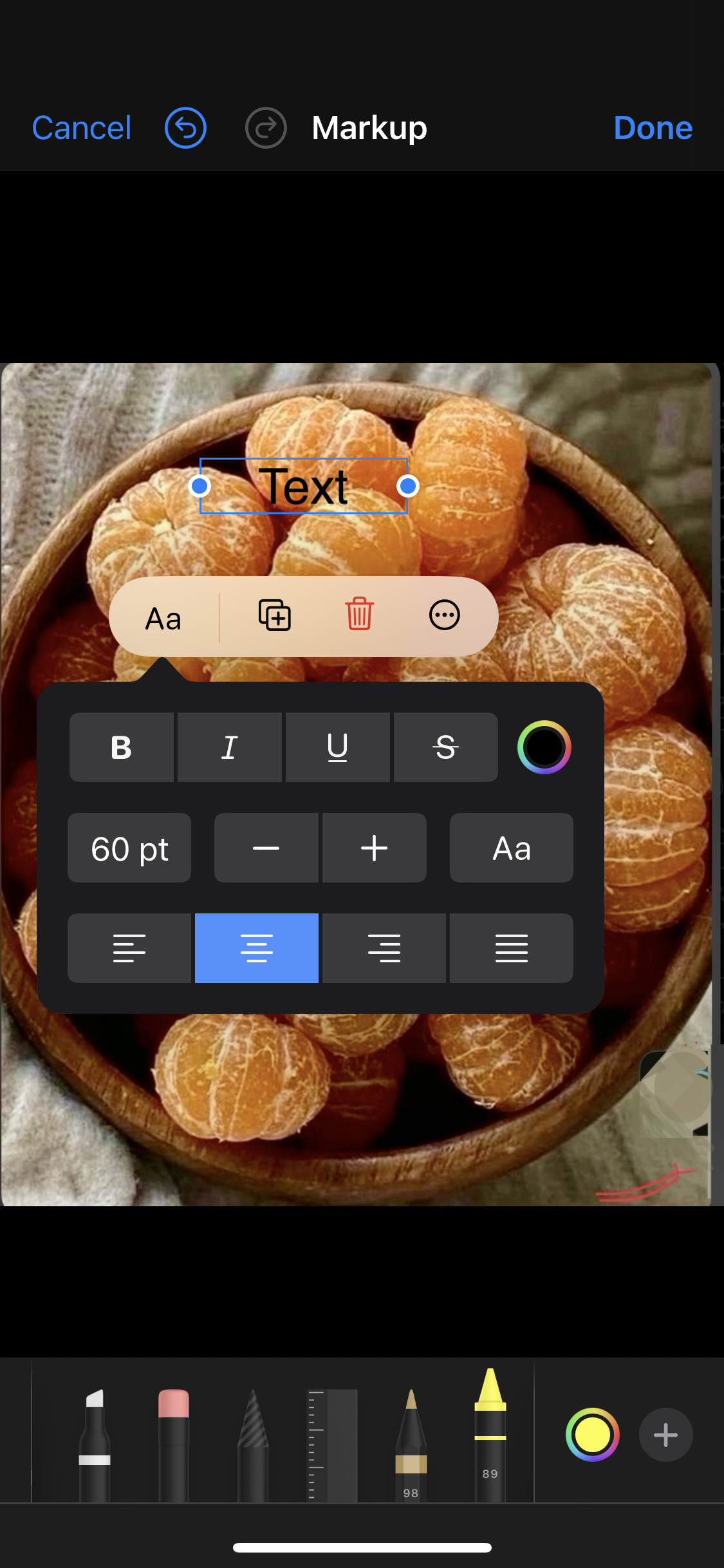

[Edited by Moderator]

No. Removing the colour palette box still does not solve the issue.

The issue is:- When the colour palette box is there, I cannot choose the exact hues-shades of colours I want….which are below the overlain box.

To get access to the colour pixels below the box, (not the exact colours given in the palette box), I still have to move the box (which is nearly impossible).

I mean, the colour choice is to be done before the box goes away.


And also: on clicking the “Cancel” button/icon, or clicking anywhere outside the box results in the box going away (and next the icon bar too). But then, the colour choosing function (without the box and chosen pin/pencil) does not work!


So it is no use removing the box by clicking it away by clicking the “Cancel” icon on the top left of the screen.


So:- the problem still persists. The pop-up colour palette box is the villain.

Hi, Richard..

How to talk to Apple directly?


(I am not sure whether the problem started with iOS 17 or 18. But I have been experiencing this for long. I don’t remember how long.

OK I will give you upvotes for you sincerely-kindly trying to help. Thanks.)

Thank you.


I'm not experienced enough with Markup, I'm afraid, to reproduce what you're meaning. It may be connected with the older iOS 17.. You might try talking with Apple directly.