I ran this script, "Batch Changing the Title to the Capture Date & Time",
(* Batch change the titles of the selected photos to the capture time
How to use this script:
- Select all photos you want to change the title of in Photos
- Open this script and run it by pressing the "Run" button in the toolbar.
- The script will read the capture date from the selected images and create a short date string according to the system preferences for the short date format in System Preferences > Language & Region > Advanced
- The script will return the last date of the last photo it changed
- if you save this script as an Application you can add it to the Dock and run it from there
This script has been tested in Photos version 1.0, with MacOS X 10.10.3
© Léonie
*)
(* select at least 1 image in Photos *)
tell application "Photos"
activate
set imageSel to (get selection)
if (imageSel is {}) then
error "Please select at least one image."
else
repeat with i from 1 to count of imageSel
set next_image to item i of imageSel
set capture_date to (the date of next_image)
set short_capture_date_string to the short date string of capture_date
set capture_time_string to the time string of capture_date
set new_title to short_capture_date_string & " @" & capture_time_string
tell next_image
set the name of next_image to the new_title as text
end tell
end repeat
end if
return "Adjusted the titles of " & (the length of imageSel) & " photos. The last date is " & ((the date of next_image) as date)
end tell
on some photos in a Ventura library with these results:
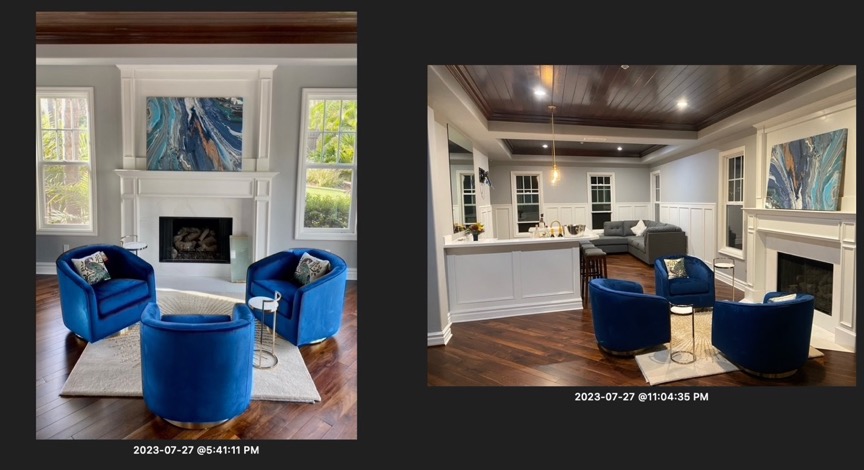
NOTE: I compiled the script as an application and had to give it Full Disk Access in System Settings for it to work.
The format is not what you posted but I assume you modified the script for that format.